Programming in C#, Java, and god knows what not

Finding PropertyGrid Defaults
Illustration

Aficionados of PropertyGrid control already know standard incantations.

[Category("Behavior")]
[DisplayName("Close on escape")]
[Description("Gets/sets if main window should be closed when Escape key is pressed.")]
[DefaultValue(false)]
public bool CloseOnEscape {
    get { return Config.Read("CloseOnEscape", false); }
    set { Config.Write("CloseOnEscape", value); }
}

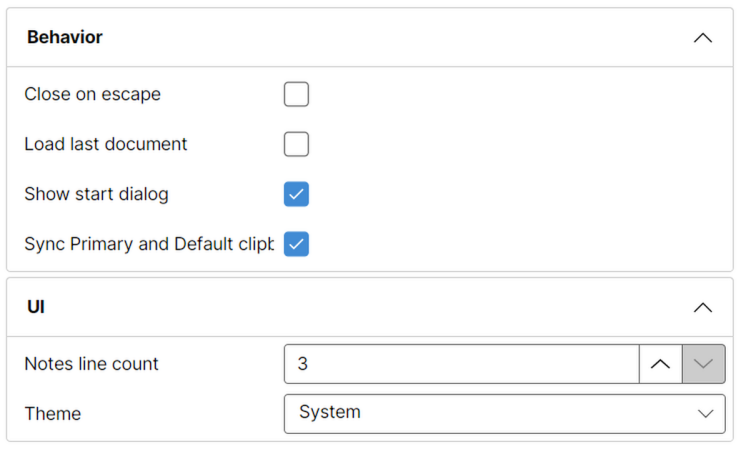
All those extra attributes get you a nice presentation in the PropertyGrid.

However, as application grows, you might decide upon changing default. If you also expose “Defaults” button, you might have a disconnect between the PropertyGrid and what your button does. Unless, you programatically get the value from DefaultValue attribute. Something like this:

private static T FindDefault<T>(string propertyName) {
    var property = typeof(Settings).GetProperty(propertyName);
    if (property == null) { throw new InvalidOperationException($"Property {propertyName} not found."); }

    var attribute = property.GetCustomAttribute<DefaultValueAttribute>();
    if (attribute == null) { throw new InvalidOperationException($"Property {propertyName} has no default value."); }

    if (attribute.Value is T value) { return value; }
    throw new InvalidOperationException($"Property {propertyName} cannot be converted to {typeof(T).Name}.");
}

Now we adjust property reading to use it.

[Category("Behavior")]
[DisplayName("Close on escape")]
[Description("Gets/sets if main window should be closed when Escape key is pressed.")]
[DefaultValue(false)]
public bool CloseOnEscape {
    get { return Config.Read("CloseOnEscape", FindDefault<bool>(nameof(CloseOnEscape));); }
    set { Config.Write("CloseOnEscape", value); }
}

Then, to setup your defaults, you simply call the function:

private void SetDefaults() {
    Settings.CloseOnEscape = FindDefault<bool>(nameof(Settings.CloseOnEscape));
}

With this, the single source of truth is in your DefaultValue attribute.
Selecting Base-32 Alphabet

For a project of mine I needed a base 32 encoding. Why base-32? Well, I wanted my encoding to have a few nice properties.

Firstly, I wanted my encoding to be case insensitive. If I stick to the letters and numbers, that gives me a maximum of 36 characters to use. Nearest power of 2 value is thus 25. This would allow me to use simple bit shifting to encode value, instead of dealing with big integers.

The first alphabet that fits this requirement is one described in RFC4648.

00000A01000I10000Q11000Y
00001B01001J10001R11001Z
00010C01010K10010S110102
00011D01011L10011T110113
00100E01100M10100U111004
00101F01101N10101V111015
00110G01110O10110W111106
00111H01111P10111X111117

And here my second desired property comes in play. I wanted my encoded value to retain lexicographic order of underlying data. I short, base-32 encoding of data should sort the same as underlying binary data would. And this is not what the default base-32 alphabet does. However, the same RFC4648 does specify alternative extended hex alphabet.

00000001000810000G11000O
00001101001910001H11001P
00010201010A10010I11010Q
00011301011B10011J11011R
00100401100C10100K11100S
00101501101D10101L11101T
00110601110E10110M11110U
00111701111F10111N11111V

And this encoding was probably good enough. But, this alphabet has one subtle issue when printed out. Depending on the font, 1, I, and l can be easily mistaken for one another. Same as 0 and O.

Thus, I needed to kick some of those characters out. And the probably best implementation for such requirement already exists. And GPS lovers might already know it - Geohash.

00000001000810000H11000S
00001101001910001J11001T
00010201010B10010K11010U
00011301011C10011M11011V
00100401100D10100N11100W
00101501101E10101P11101X
00110601110F10110Q11110Y
00111701111G10111R11111Z

Here we kick out I, l, O and A. This is actually the system I decided to use for Id26 output in my Uuid7 project. It was the best “standard” alphabet that fit my requirements.

However, I think I missed a good chance to bring my own alphabet to the game. Out of 5 problematic characters, I can remove 4. After giving it some thought and going over multiple fonts, I’ve settled on removing I, l, 0, and O. These characters looked the most similar to my eyes and thus had to go. The resulting alphabet is in table below.

00000101000910000H11000S
00001201001A10001J11001T
00010301010B10010K11010U
00011401011C10011M11011V
00100501100D10100N11100W
00101601101E10101P11101X
00110701110F10110Q11110Y
00111801111G10111R11111Z

Now, am I overthinking it? Probably. But there is a reason why there are so many base-32 alphabets around - everybody got their itch to scratch.


PS: For curious, here are the most common base-32 alphabets.

Base32ABCDEFGHIJKLMNOPQRSTUVWXYZ234567
Base32E0123456789ABCDEFGHIJKLMNOPQRSTUV
Crockford0123456789ABCDEFGHJKMNPQRSTVWXYZ
Geohash0123456789BCDEFGHJKMNPQRSTUVWXYZ
Nintendo0123456789BCDFGHJKLMNPQRSTVWXYZ*
Turing/E@A:SIU¼DRJNFCKTZLWHYPQOBG"MXV£
Word-safe23456789CFGHJMPQRVWXCFGHJMPQRVWX
Z-base-32YBNDRFG8EJKMCPQXOT1UWISZA345H769

Goto in Spirit But Not in Name

I’ve heard statements like “good programmer should never use goto” a million times. Due to various reasons, some good and some bad, goto command is really hated. I would say it’s hated so much that quite a few young programmers are even not aware of its existence. One could say its existence in C# is treated as measels. And, just like measels, it’s making a comeback.

First of all, why would you use goto? For example, if we’re checking something deep in loops, there is no easier way to exit them fully than a humble goto. Consider the following code:

for (var i = 0; i < 100; i++) {
  for (var j = 0; j < 100; j++) {
    if (something) { goto Done; }
  }
}

Done:
// proceed with other code

Yes, you can get the same effect by using break at each level but this is definitely a nicer way to do it. And I would argue that this is NOT a misuse of goto. Regardless, C# 15 is preparing a death nail for this usage too.

New feature is called Labeled break and continue. In C# 15, my example above would now look like this:

Work:
for (var i = 0; i < 100; i++) {
  for (var j = 0; j < 100; j++) {
    if (something) { break Work; }
  }
}

// proceed with other code

I would argue this is a goto in disguise. Just a syntactic sugar that changes what gets labeled but doesn’t really change the flow.

That said, I am not really against it. I see how in many situations it will be more expressive than goto was. Maybe it’s time for goto to retire.

I for one welcome “Labeled break and continue” aka goto2. :)

Not All Rotates Are Made Equal

If you are dealing with encryption algorithms at all, you will notice bitwise rotate operation is used with regularity. While most processors have it available, not all languages do. For example, C# will force you to use shifting and or alternative, something like this:

(value >> count) | (value << (64 - count))

What might come as a surprise is that this incurs no performance penalty as compared to the native rotate operation. How come?

Well, a couple of years ago issue 4519 dealt with this exact problem. While it was deemed to disruptive to introduce rotate operation to the whole .NET system, it was possible to make JIT smarter. Whenever JIT notices operation pattern above, it will call upon native rotate operation, thus drastically improving performance.

However, since we’re talking about pattern recognition, you need to be careful how you write it. While we can write rotate operation in multitude of ways, not all of them will result in performance improvement. If you want rotate, better stick with the “official” pattern.

Avalonia ShowDialog and a Minimize Button

If you use ShowDialog in Avalonia, you will notice that under KDE/Wayland, window will retain minimize button. Even worse, minimize will hide the window, leaving its owner visible but not clickable. Slightly annoying and user might not even understand immediatelly why clicks on the main window are not working until they restore minimized dialog.

And, try as I might, I found no way to remove minimize box without removing the whole title. Since I was not in the mood to handle titleless windows, the next best thing was to close dialog window on minimize. Of course, detecting when window gets minimized is not really straightforward.

In the end, this is the code I ended up using:

PropertyChanged += (sender, e) => {
  if (e.Property == Window.WindowStateProperty && WindowState == WindowState.Minimized) {
    Dispatcher.UIThread.InvokeAsync(() => {
      WindowState = WindowState.Normal;
      Close();
    });
  }
};

We inject our check into the general PropertyChanged event handling. However, we cannot directly close window here as it will not revert focus to the owner. What we need is to ask dispatcher to invoke our code once UI thread has a spare moment. Then we restore the freshly minimized window, followed by close.

Not great, but not terrible either.

Synchronous Wait for Avalonia Dialog

Ideally, showing Avalonia dialog would be called from async method:

var frm = new Window(owner);
await frm.ShowDialog(this);

And 90% of time you’re good with that.

However, what if we don’t have async method handy? What if we really need to ShowDialog from non-async code?

Well, a bit more convoluted code can be used.

using var source = new CancellationTokenSource();
window.ShowDialog(owner).ContinueWith(t => source.Cancel(),
                                      TaskScheduler.FromCurrentSynchronizationContext());
Dispatcher.UIThread.MainLoop(source.Token);

A bit of handful and not really portable, but it does the job.

Medo.Config

Almost every application needs configuration handling and .NET has a reasonable way of doing this. But, I personally find it slightly overly complicated and I don’t like XML files it uses. I perfer a simple file format and thus, I have used my own configuration handling classes for years now. Code was simple and available as part of my Medo library.

So, after probably years of just copying class file from project to project, I finally decided to rewrite my configuration handling as a NuGet library. Better late than never, I guess.

So, what does Medo.Config offer?

Firstly, API interface is as simple as it gets.

Config.Write("KeyS", "Value");
Config.Write("KeyN", 42);
var s = Config.Read("KeyS", "DEFAULT");
var n = Config.Read("KeyN", 0);

By inferring type from default value, it ensures you don’t have to deal with nulls. While you do have Config.User property for more direct access, that is for special occasions only. And yes, it does support system configuration files under Linux.

Secondly, it uses a reasonable configuration file format. Each entry is just a key/value pair.

Key1: Value1
Key2: Value2

While it uses colon (:) internally, it will read key/value pairs with equals (=) just fine. This ensures this format is easily read or written by a human.

On topic of readability, I am fan of comments and I really hate when my comment gets removed when I save configs. Well, not here. For example, writing Key here is not going to delete comment. Honestly, back in days when I decided to “roll my own” this was really high on my priority list.

# Comment that stays
Key: Value

Proper configuration handling on Linux was also high on my priority list. Mind you, old code was only partially handling this as I used .app as my config. With this new code, I finally switched to XDG directory structure. This ensures that my home directory stays clear and that configuration is separate from user state.

Yes, this class supports both configration (user and system) and state. While you can use the same functions to access state, everything gets stored into a separate state file.

Config.State.Write("State", 1.0);
var s = Config.State.Read("State", 0.0);

But wait, that’s not all. This library also supports recent file handling. You just add files as you use them and library will handle ordering, duplicate handling, count limiting, and other such details.

Config.Recent.Files.Add(new FileInfo("file.txt"));
foreach (var file in Config.Recent.Files) {
  // do somethign with a recent file
}

This is not a rocket science but it surely comes in handy.

What a Difference Does a Comma Make

When starting a new C# project I like to create the basic structure immediately. In my case this means, src/, examples/, and tests/. Quite often I just copy an existing project and adjust it as needed. In this case, I copied .NET 8 project and adjusted it for my “usual” multi-framework setup.

<TargetFrameworks>net10.0,net8.0,netstandard2.0</TargetFrameworks>

I mean, for libraries, it’s just fair.

However, this time I was surprised by the error:

Package MSTest.TestFramework 4.1.0 is not compatible with net100 (net10.0,Version=v0.0). Package MSTest.TestFramework 4.1.0 supports:
  - net462 (.NETFramework,Version=v4.6.2)
  - net8.0 (.NETCoreApp,Version=v8.0)
  - net9.0 (.NETCoreApp,Version=v9.0)
  - netstandard2.0 (.NETStandard,Version=v2.0)
  - uap10.0 (UAP,Version=v10.0)

Since I did upgrade my MSTest package references to the latest, I thought it had someething to do with it. But even restoring packages to the same version used in another project caused the same essential error. It took me a while to notice the same thing most of you already have. The correct target line should have been:

<TargetFrameworks>net10.0;net8.0;netstandard2.0</TargetFrameworks>

Behind a really misleading error was a simple typo.

After running it again, all worked so I decided to upgrade packages (again). And then I stumbled upon other issue:

error Microsoft.NET.Test.Sdk doesn't support netstandard2.0 and has not been tested with it.
Consider upgrading your TargetFramework to net8.0 or later.

It seems that Microsoft decided to abandon the whole .NET Standard concept. Which is a shame because it really limits creation and testing of .NET 4.x code under Linux.

In the end, I downgraded packages slighty:

<ItemGroup>
  <PackageReference Include="Microsoft.NET.Test.Sdk" Version="17.13.0" />
  <PackageReference Include="MSTest.TestAdapter" Version="4.1.0" />
  <PackageReference Include="MSTest.TestFramework" Version="4.1.0" />
  <PackageReference Include="coverlet.collector" Version="6.0.2">
    <PrivateAssets>all</PrivateAssets>
    <IncludeAssets>runtime; build; native; contentfiles; analyzers; buildtransitive</IncludeAssets>
  </PackageReference>
</ItemGroup>

And finally, after spending way too much time playing with config, I could finally start coding.

VSCode Rulers Config Change

Illustration

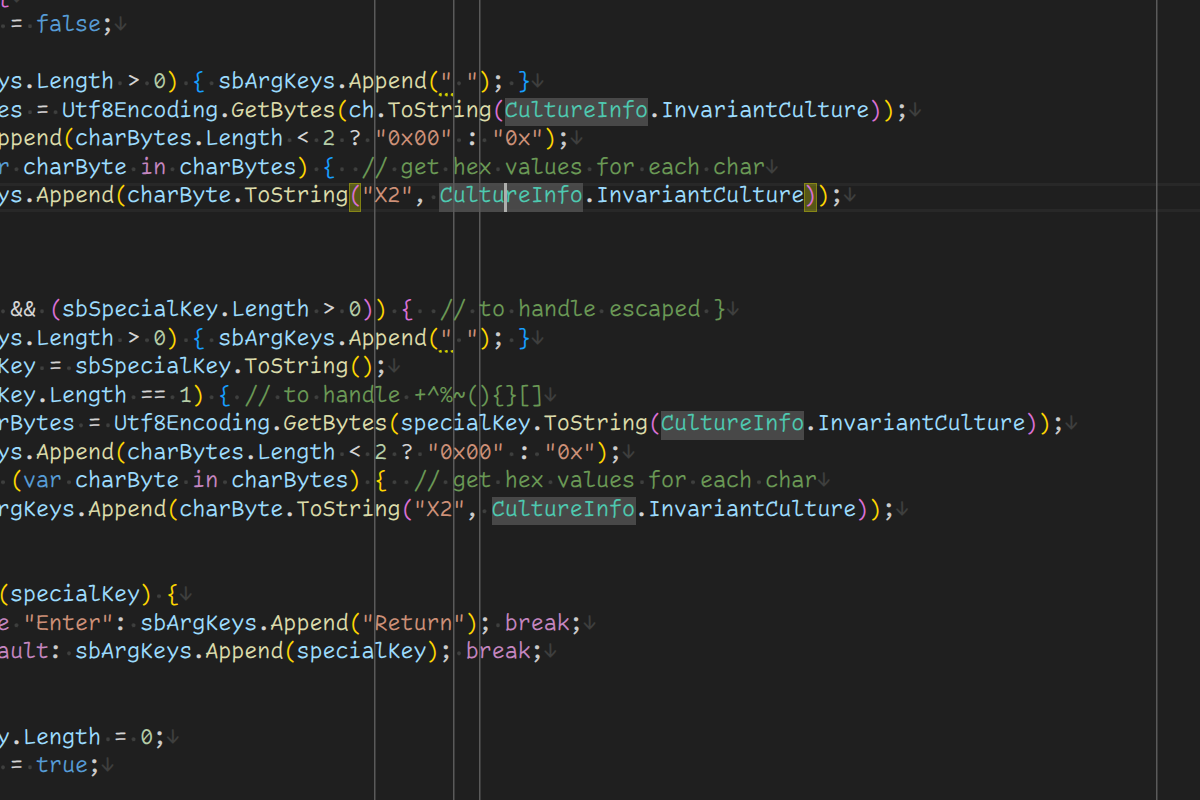
I love having rulers in text editor. While I don’t necessarily obey them at all times, they are useful as an indication of line length. That is, assuming they stay in the background. With VSCode 1.113 my background rulers suddenly lost their color and moved to foreground as grey lines. Quite distracting.

I double checked my config and it was the same as always:

"editor.rulers": [ 72, 78, 80, 132 ],
"workbench.colorCustomizations": {
  "[Default Dark Modern]": {
    "editorRuler.foreground": "#402020"
  },
  "[Default Light Modern]": {
    "editorRuler.foreground": "#F0E0E0"
  }
}

It didn’t take me long to find issue 54312. VSCode now allows customizable ruler color. However, in the process of this, editorRuler.foreground style was removed. Thus, my theme defaulted to ugly gray.

However, it is simple to recreate the old behavior:

"editor.rulers": [
  { "column": 72,  "color": "#402020" },
  { "column": 78,  "color": "#402020" },
  { "column": 80,  "color": "#402020" },
  { "column": 132, "color": "#512f2f" },
],

Here I even use the perk that caused the issue in the first place - my last ruler is a slightly different color. The only downside for me was the fact you cannot setup ruler color per theme. Thus, you might need to adjust colors every time theme is changed. Considering I almost never change the theme, this is something I am ready to live with.

Gray rulers be gone!

Trace Console Output

One common behavior for Linux GUI applications when ran from console is to write log text directly there. It’s not really a mandatory feature but a lot of frameworks do it so it became de-facto standard. However, C# applications often don’t follow this principle. I will take Avalonia for example. While Avalonia itself will write log to console, user code will not.

If you are using some logging framework (e.g. Serilog), this is trivial to configure. But, what about simple applications? Can we do something there?

Well, you can always add a console listener.

#if DEBUG
  if (RuntimeInformation.IsOSPlatform(OSPlatform.Linux)) {
    Trace.Listeners.Add(new ConsoleTraceListener());
  }
#endif

With this, any Trace.WriteLine will write its output to console in addition to other trace listeners.

Why only on Linux? Well, under Windows there is a nice DebugView utility that can capture this information without going through console listener.